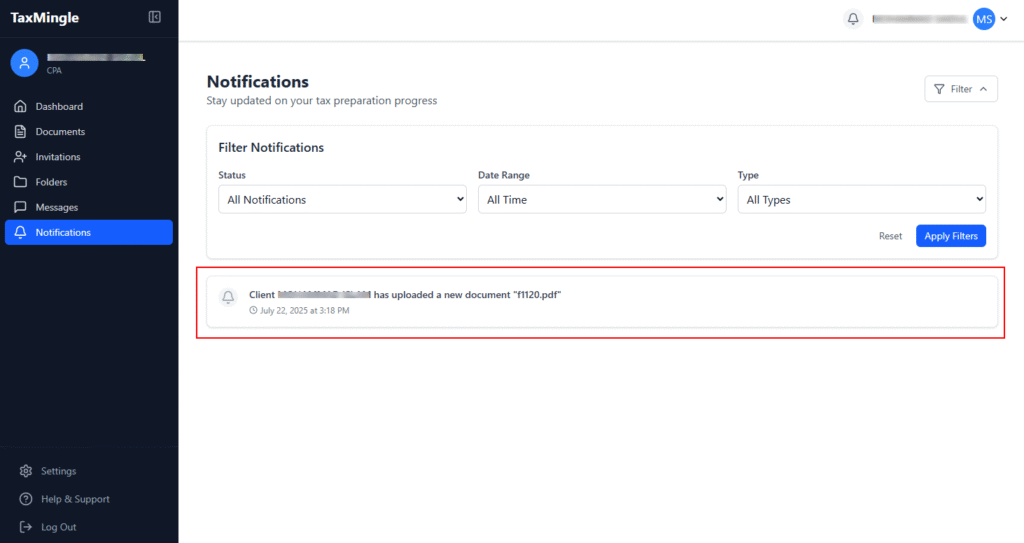
Once a CPA logs in to TaxMingle, they are welcomed into a clean, organized dashboard designed to simplify every part of the tax workflow. The dashboard is your central hub for managing documents, tracking client activity, sending invitations, and staying updated — all in one secure location.
Key Areas of the CPA Dashboard
The left-hand sidebar serves as your primary navigation tool, offering quick access to all essential features:
1. Sidebar Navigation
- Dashboard – View a high-level summary of your workspace and recent activity.
- Documents – Upload, manage, assign, and edit all tax files securely.
- Invitations – Invite clients or teammates to join your organization.
- Folders – Organize documents by client, tax year, or form type for easy access and management.
- Messages – Communicate instantly with clients using the built-in chat feature.
- Notifications – Get real-time alerts for uploads, messages, signatures, and other updates.
- Settings – Update your profile, manage your organization, and configure security preferences.
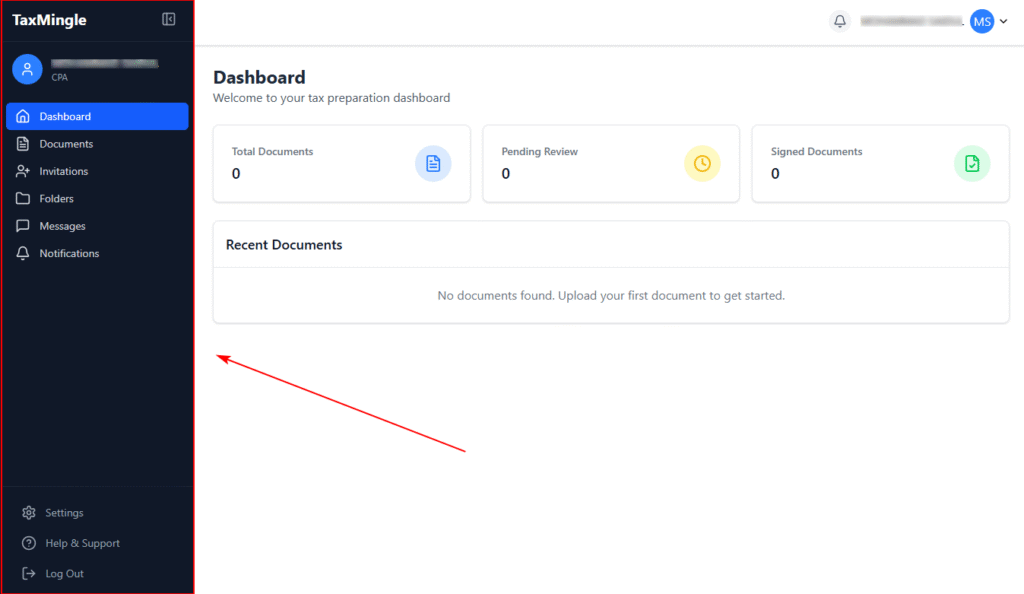
2. Main Workspace
The central workspace dynamically updates based on your sidebar selection. It displays the core content of each section, such as:
- Folders and document lists
- Upload options and file actions
- Signature request tracking
- Assigned client tasks or documents
This flexible layout ensures easy navigation and full visibility at all times.
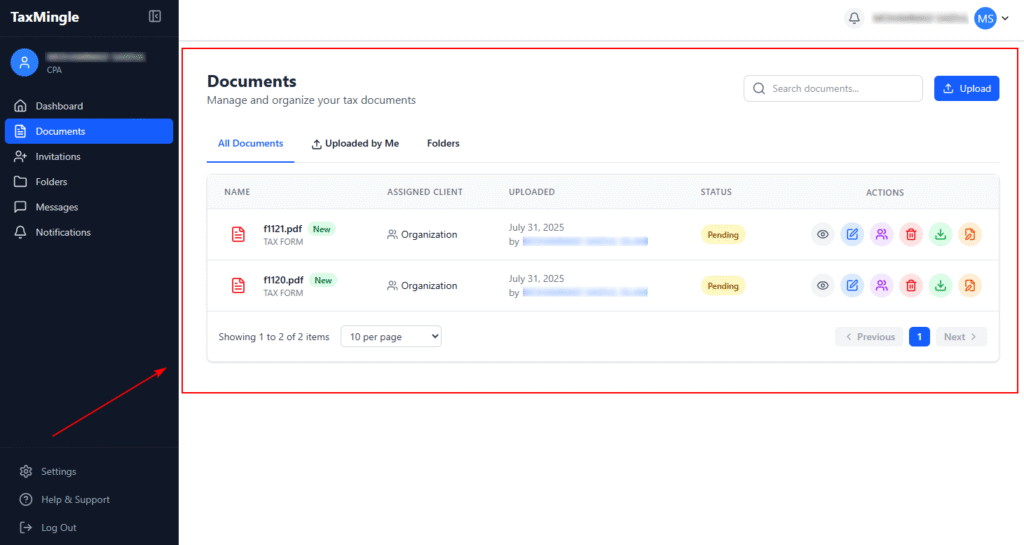
3. Folder & Document Management
Organize your files with ease by creating folders and nested subfolders — sorted by client, tax year, or form type. From the document list, you can:
- Assign documents to teammates or clients
- Edit PDFs directly within the platform
- Download, delete, or send documents for signature
- Track actions and version status in one place
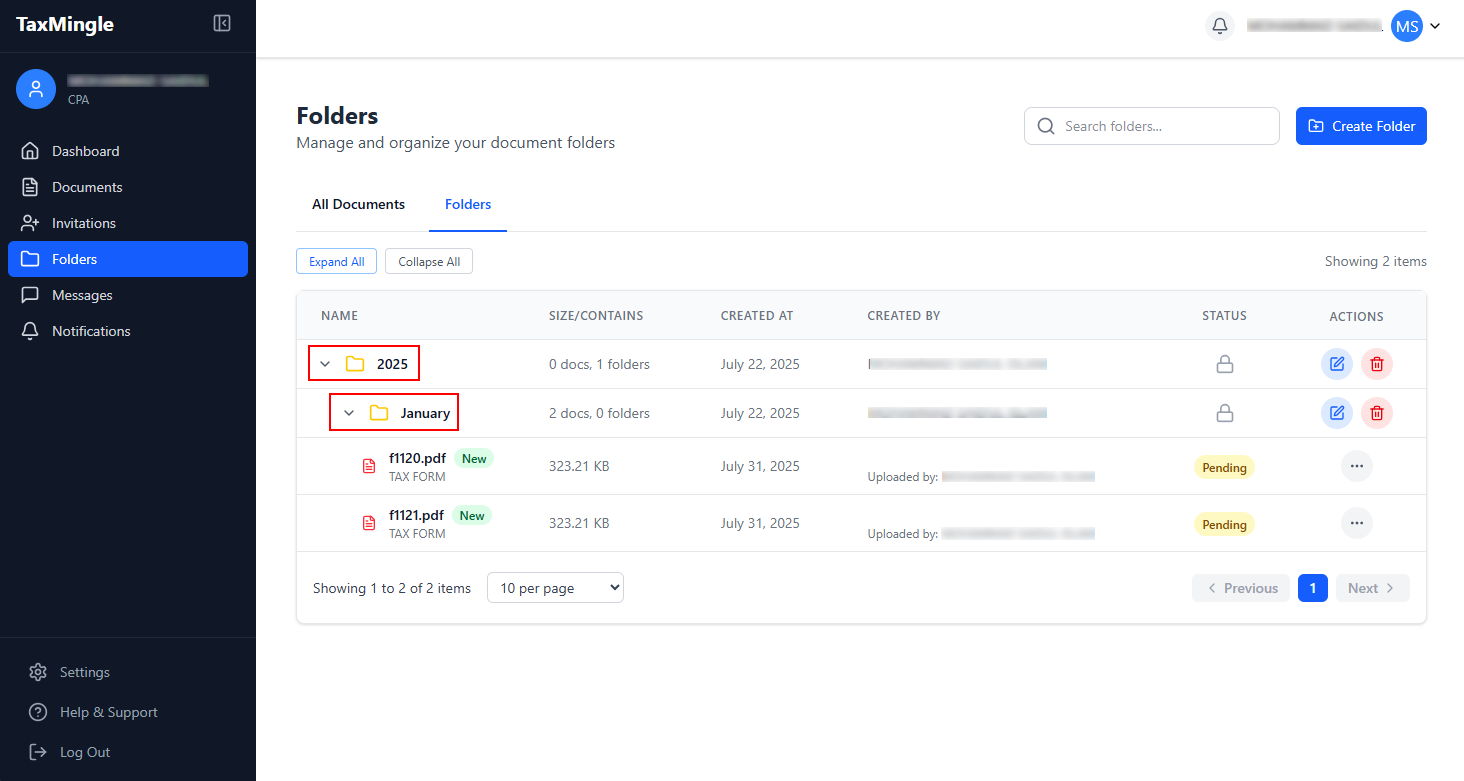
4. Real-Time Notifications
Stay updated with every important action. The notification panel alerts you instantly about:
- New document uploads
- Completed e-signatures
- Incoming client messages
- Invitation acceptances or rejections
You can also filter notifications by type, status, or date — keeping your workflow focused and efficient.