TaxMingle gives clients control over their account settings, profile details, and security preferences. This guide walks you through updating your profile and setting up two-factor authentication (2FA) for enhanced security.
1. Accessing Account Settings
To manage your profile or security settings:
- Log in to your TaxMingle account.
- From the left-hand sidebar, click on Settings.
- You’ll see two main tabs at the top: Profile and Security.
2. Updating Your Profile Information
To update your personal details:
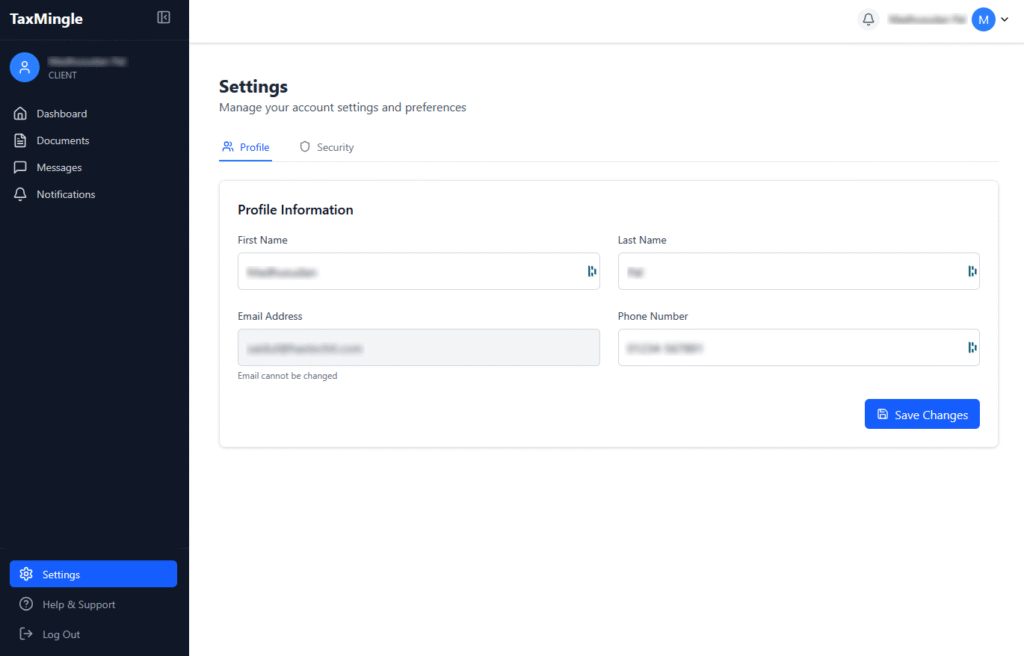
- In the Profile tab under Settings, you’ll find the Profile Information section.
- You can update the following fields:
- First Name
- Last Name
- Phone Number
- Your Email Address is visible but cannot be changed.
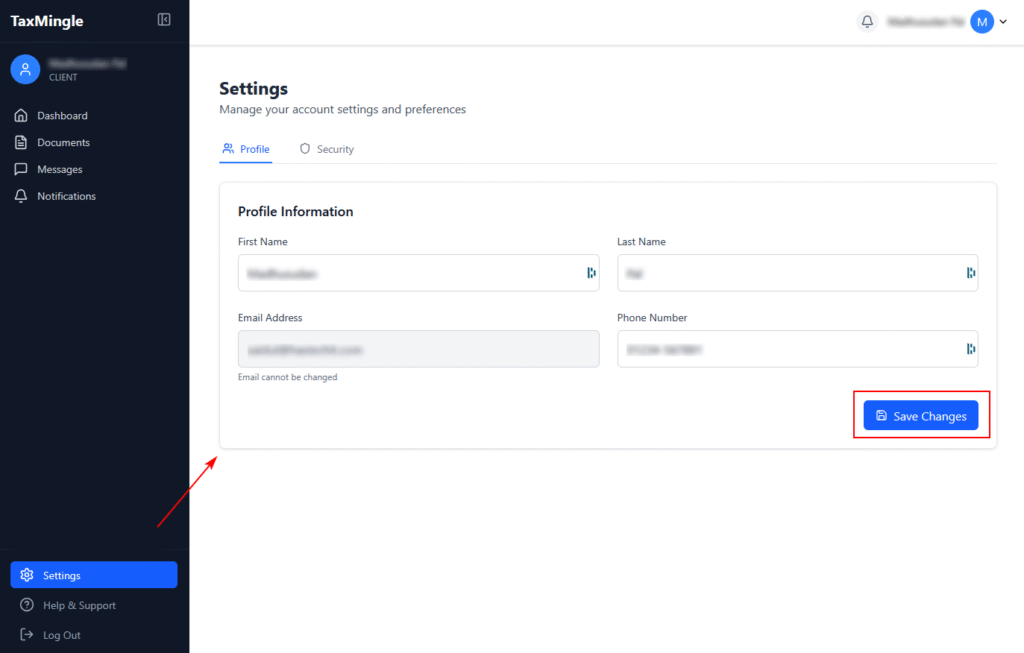
- After updating your information, click Save Changes to apply updates.
- Email address cannot be edited once registered.
3. Managing Security Settings
Click on the Security tab under Settings to access password and 2FA options. You’ll see two sub-tabs:
- Password
- Two-Factor Authentication
A. Change Your Password
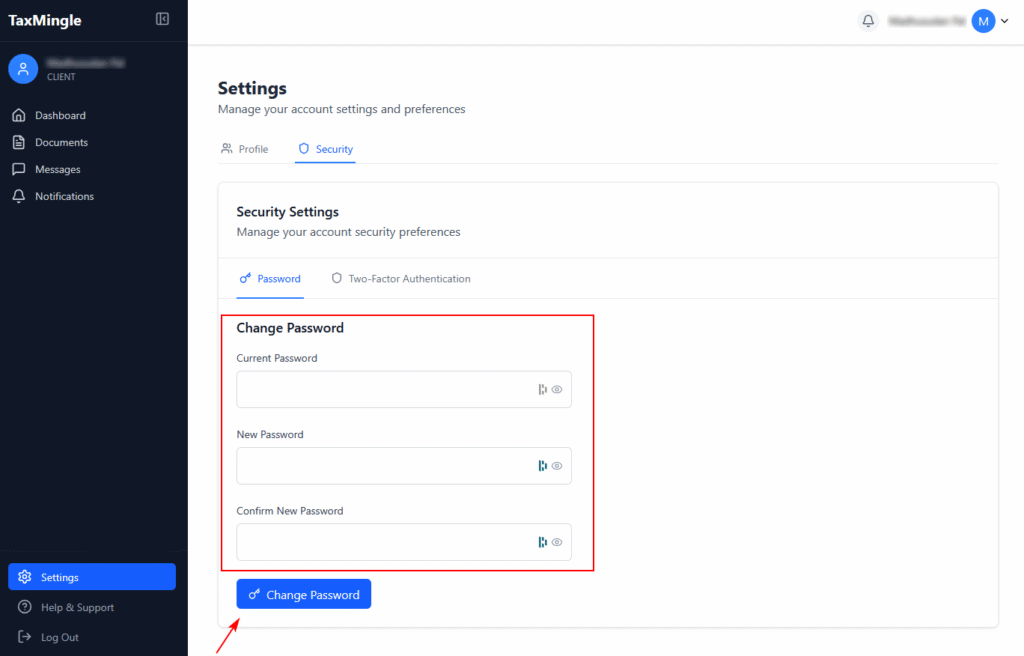
- Go to the Password tab.
- Enter your Current Password.
- Enter a New Password.
- Confirm the new password.
- Click the Change Password button to update your login credentials.
B. Enable Two-Factor Authentication (2FA)
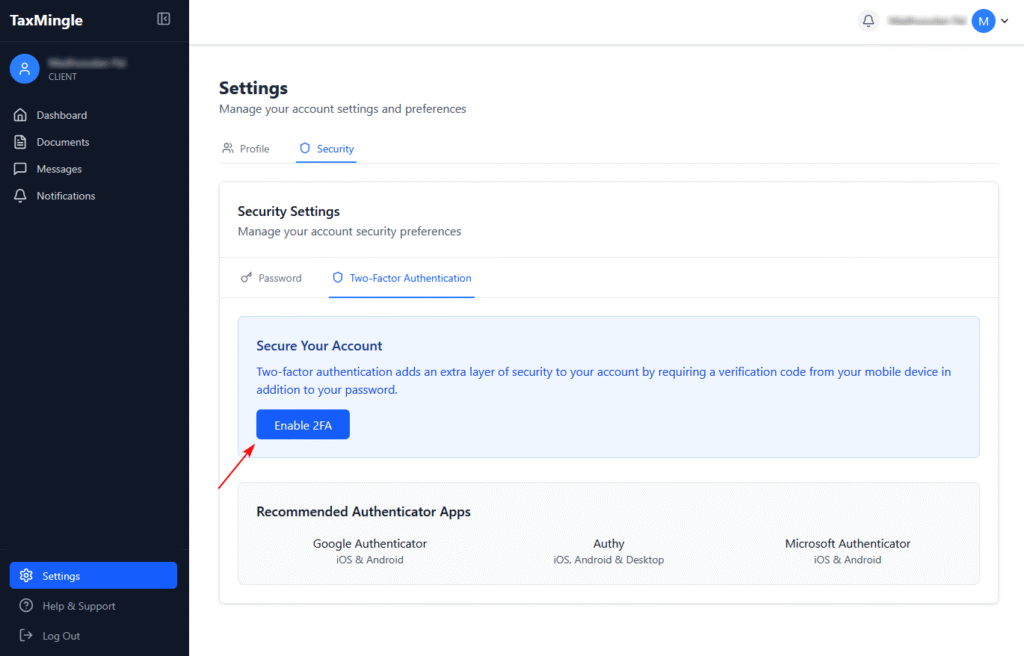
Two-Factor Authentication adds an extra layer of security by requiring a time-sensitive verification code from your mobile device, in addition to your password.
Step 1: Initiate 2FA Setup
- Switch to the Two-Factor Authentication tab under Security Settings.
- Click the Enable 2FA button.
Step 2: Add to Your Authenticator App
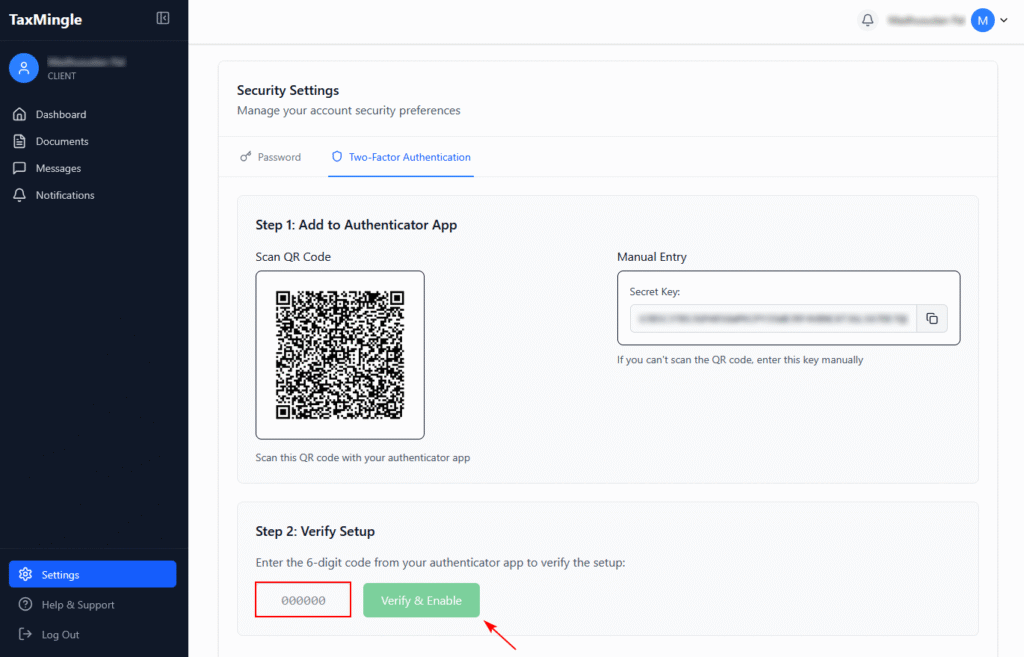
- Scan the QR Code using an authenticator app such as:
- Google Authenticator (iOS & Android)
- Authy (iOS, Android & Desktop)
- Microsoft Authenticator (iOS & Android)
- Alternatively, you can manually enter the Secret Key displayed on-screen into your app.
Step 3: Verify the Setup
- After scanning or entering the code, your authenticator app will generate a 6-digit code.
- Enter this code in the Verify & Enable field.
- Click Verify & Enable to complete the 2FA setup.