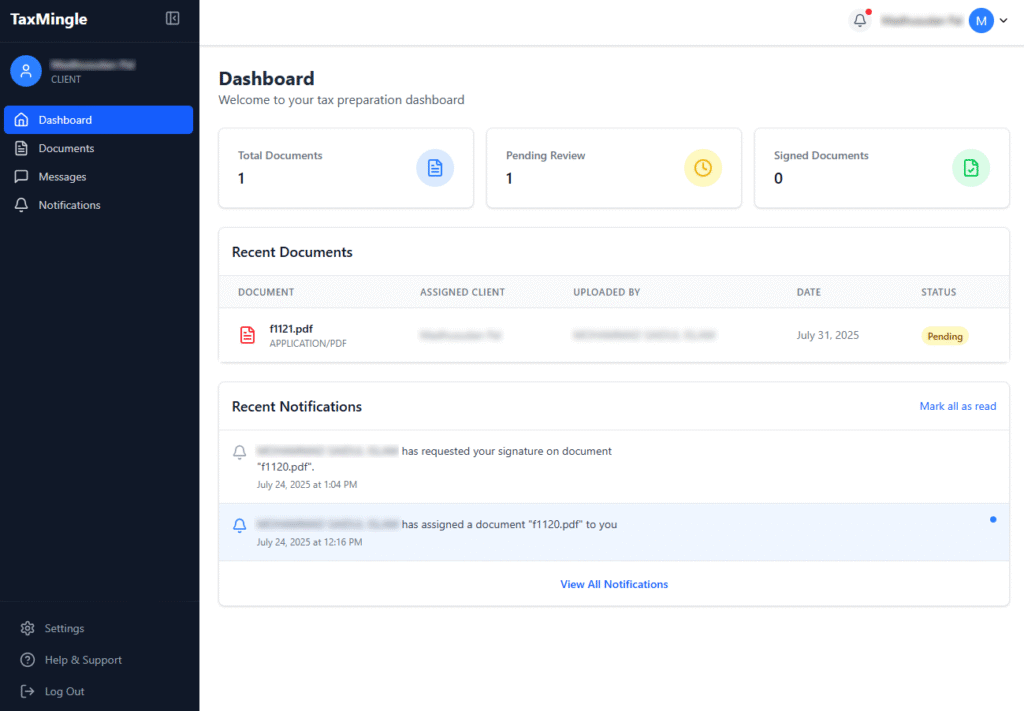
Once logged in, clients are welcomed into a clean, secure dashboard that puts everything their CPA has shared — documents, messages, and updates — in one place. The interface is designed to make reviewing tax documents, staying informed, and communicating with your CPA easy and stress-free.
Below is a guided overview of the key sections you’ll find inside your TaxMingle dashboard:
1. Client Dashboard Layout at a Glance
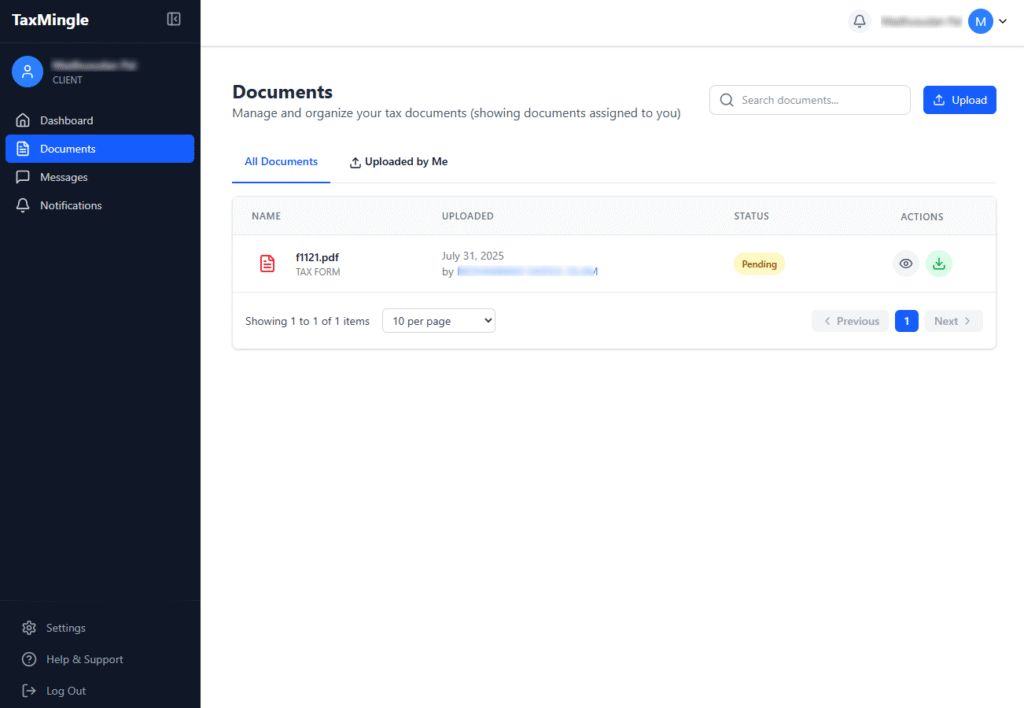
2. Files Shared by Your CPA
Under the Documents tab, clients can:
- View all files shared by their CPA
- Download or review documents
- Respond to signature requests
- Track which documents are pending or completed
This section is updated in real-time as CPAs upload or assign files.
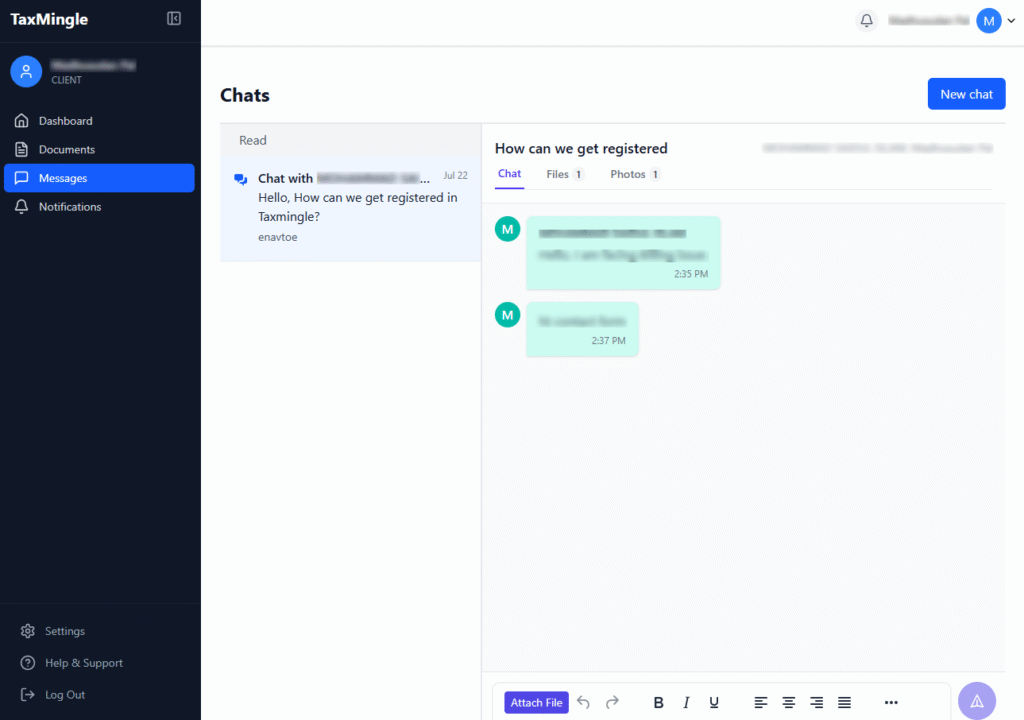
3. Messages Tab
The Messages tab allows clients to:
- Chat directly with their CPA
- Ask questions or request clarifications
- Send secure responses without switching to email
This keeps all communication centralized and secure within the platform.
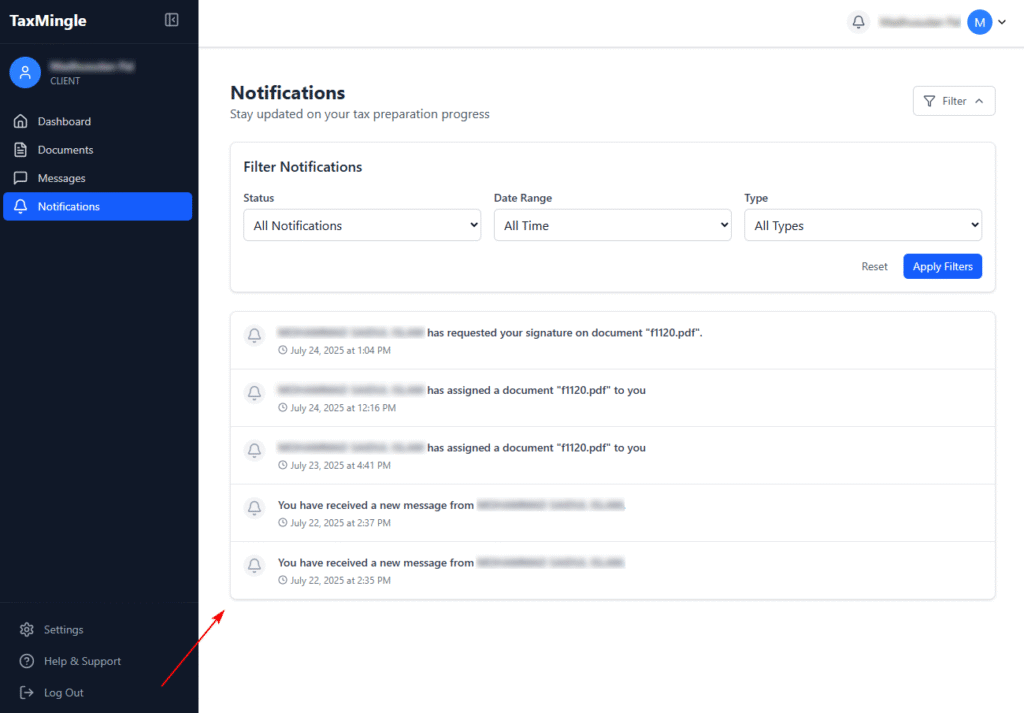
4. Notifications Panel
The Notifications tab shows important updates such as:
- New documents uploaded
- Signature requests received
- Messages from your CPA
- Invitation status
You can filter or mark notifications as read to stay organized.
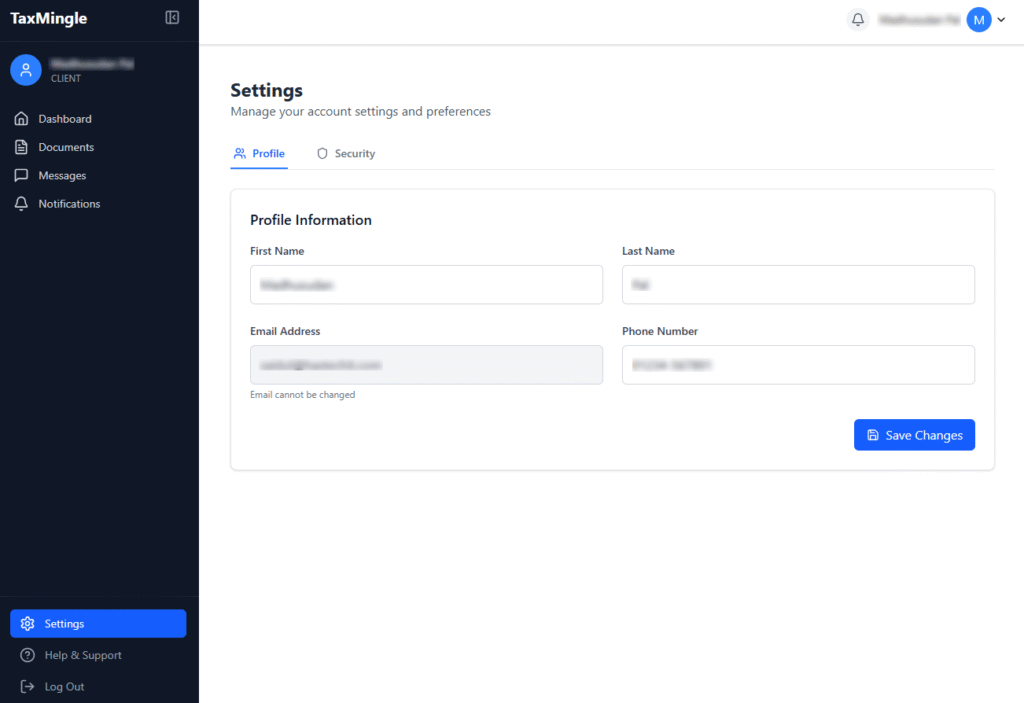
5. Profile & Settings
Clients can access their profile settings to:
- Update their name, email, or password
- Enable two-factor authentication (2FA)
- Manage notification preferences